

Dialogue & Text
The dialogue system allows actors to display text boxes, choices, and conditional branching. It handles everything from simple one-line messages to multi-page conversations with player choices.
Displaying Text
Use the Show Text event to display a dialogue box with text. The text box appears at the bottom of the screen and waits for the player to press a button before continuing.
You can include variable values in your text using the $XX$ syntax, where XX is the variable number. Line breaks are represented with \n.
Use Clear Text to remove the current text, and Close Dialogue to dismiss the dialogue box entirely. If you need the dialogue to remain open between events, use Force Dialogue to Stay Open.
Choices
The Show Choices event presents the player with selectable options. The result is stored in a variable that you can check with control flow events to branch your script.
Drawing Text Manually
For more control over text placement, use the Draw Text event. This lets you place text at a specific position on the screen without using the standard dialogue box. You can combine it with Draw Frame and Draw Cursor for custom menu layouts.
UI
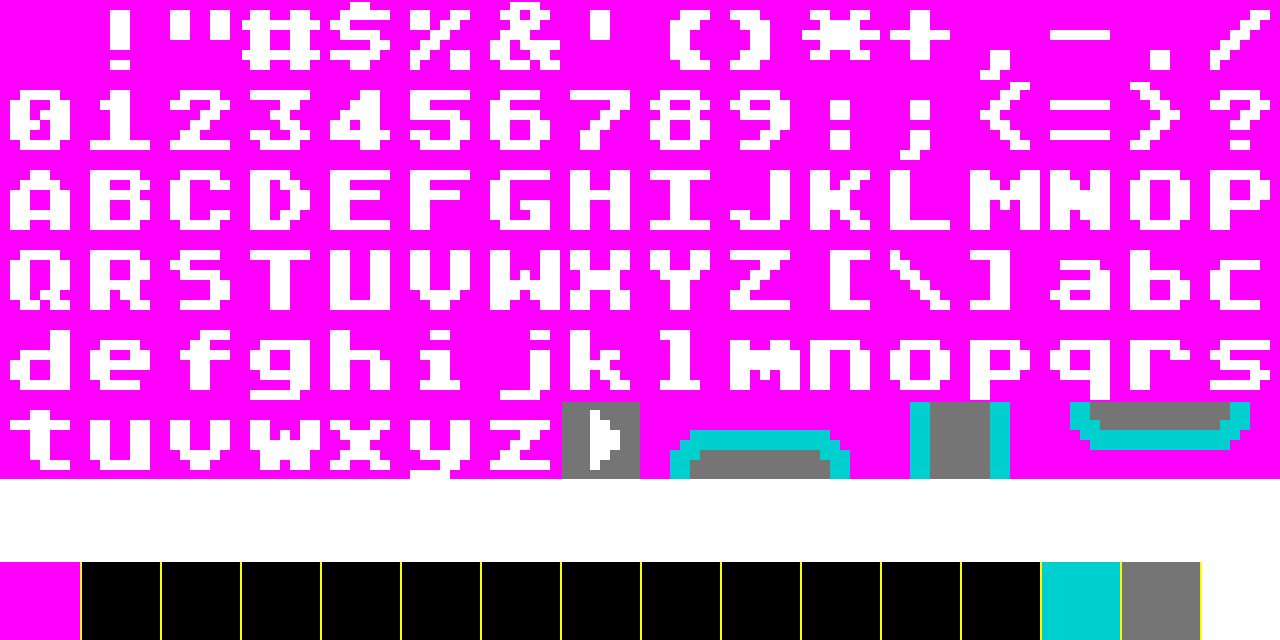
The dialogue system uses two UI pieces — a frame and a cursor. You can change them in the Dialogue & Text settings window.
There are more details about the UI elements in the UI Tilesets section.
You can also swap the frame and cursor at runtime:
- Set Dialogue Frame — Change the dialogue frame tileset
- Set Dialogue Cursor — Change the cursor tileset
Fonts
Use Load Font to load a font into memory and Set Font to switch the active font. This lets you use multiple fonts for different characters or emphasis.
Colors
The default font, as well as fonts generated with the font converter for the Advanced Mode, use the last color (color 15) of the selected Text palette as the text color.
The default cursor and frame use colors 13 and 14 of the selected palette. You can have different palettes for the dialogue frame and the text:
- Set Dialogue Frame Palette — Change the frame palette
- Set Text Palette — Change the text palette
Tips
- Keep dialogue lines short — the Mega Drive screen is only 40 characters wide in H40 mode.
- Use Actor As Cursor to replace the default text cursor with an animated sprite for a more polished look.
- Set text priority with Set Text Priority to control whether text appears above or below sprites.
See Also
- Dialogue & Text Event Glossary — Full reference for all dialogue events
- Text Demo — Interactive example of dialogue features
- Localization — Translating your game's text into multiple languages
- Fonts — Font assets and the font converter