
Collisions & Physics
MD Engine provides a simple collision & physics system; it's not a fully featured physics engine like Box2D, but good enough for arcade-style platformers, shooters, puzzles, etc.
There are several physics values, local to each actor:
- Position
- Velocity X / Y
- Acceleration X / Y
Also, some are global to the entire game:
- Maximum Velocity X / Y
- Deceleration X / Y
- Acceleration
- Gravity
- Jump
You can adjust the global ones on the Engine Fields settings.
The global acceleration, gravity, and jump values are used automatically for the Platformer Behaviour.
Collision System
There are three different collision systems available to choose, Simple, Advanced (Fast), and Advanced (Slow).
The major difference is that on the Advanced system, actors can push each other while on the simple they overlap but can't physically move one another.
Actor Overlap Behaviour
When two actors overlap each other you can adjust how the On Collide scripts are invoked, it can be changed on the Collisions settings.
- First Time - This option causes On Collide to be called only the first time it happens, and it won't be called again until they stop overlapping.
- Continuous - This option causes On Collide to be called every frame from when the overlap begins until there is no overlap.
Be aware First Time option may behave the same as Continuous option if both actors are solid and you are using the Advanced system.
Due to actors never fully overlapping, they separate and adjust their positions.
Collision Mode
This setting lets you choose different ways of calculating collisions.
You can choose between All Actors, Only On-Screen Actors, and Gridding.
All Actors
This is the default option, it will work fine for most games that have a reduced amount of actors and small levels.
Only On-Screen Actors
This is the best option if you have very large levels and a lot of actors spread, this way only actors that are on-screen are checked for collisions.
Gridding
This is the best option for shooters that feature a lot of bullets and actors, you can adjust the grid sizes, as well as how the objects are gridded to get the best possible performance.
Collision Special Options
Collision Tiles
Collision Tiles refers to the export size of the scene collisions information, you can set either 8x8 pixels or 16x16 pixels.
This option helps reduce the amount of RAM used on collision information as well as the ROM size if all your collisions are placed on 16x16px squares.
During build time if you have any square with collision information that is not correct a warning will be printed.
Collision Bias
Collision bias refers to a small numerical adjustment (or tolerance) used to prevent actors from "sticking," jittering, or tunneling through each other.
Collision bias controls the simulation step size for physics resolution. It determines how far actors are pushed apart when overlapping and how aggressively the engine resolves penetrations.
- Lower values produce more precise collision detection and smoother separation, but require more processing time per frame. Use lower values when you need precise platforming or tight collision boundaries.
- Higher values are faster to compute but may cause the engine to miss thin collisions (tunneling), especially with fast-moving actors or projectiles.
- The default value works well for most games. You should only change it if you notice specific issues.
Practical advice:
- Increase the bias if you have fast-moving projectiles that need to detect thin walls, or if actors are jittering against surfaces.
- Decrease the bias for precise platforming where pixel-perfect landings matter.
- If actors get stuck in walls or floors, try adjusting the bias in small increments.
Collision Masking
Collision masking is a technique used in physics simulations to control which actors can collide or interact with each other.
Instead of every actor checking collisions against every other actor (which can be inefficient or undesirable), collision masking lets you define groups that specify which collisions should be considered.
You can assign each actor to a specific group in the actor settings.
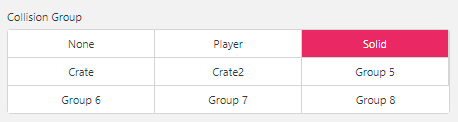
After that, you can select if each collision group overlaps another by just clicking the box.
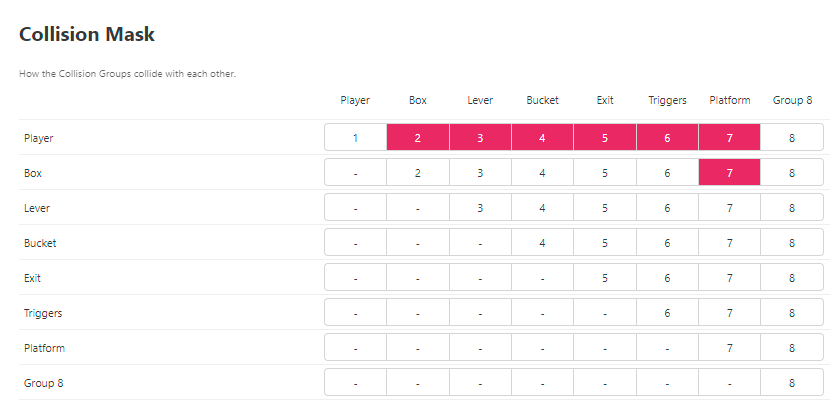
Collision Frequency
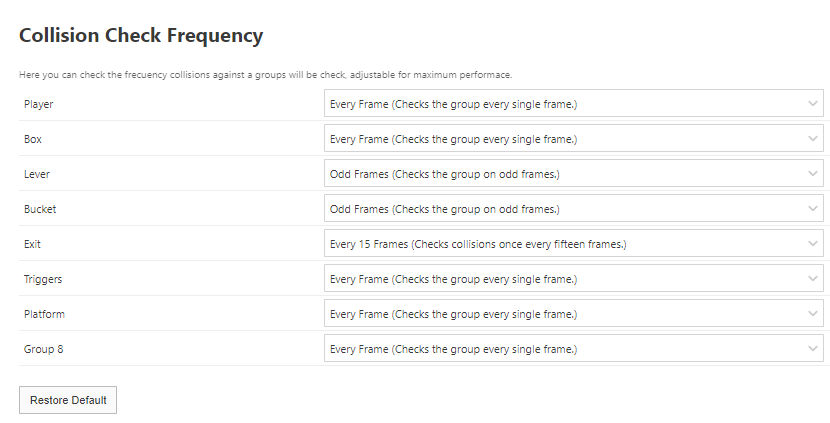
You can adjust the frequency each of the collision groups will be checked.
The options change depending on the collision mode.
All Actors
The All Actors mode allows you to check how each group is checked.
This helps increase the performance without having to change to a different collision mode.
Only On-Screen Actors & Gridding
These two modes allow you to check how each projectile group is checked. This helps improve the performance of shooters a bit more when using the gridding system.
See Also
- Behaviours — Platformer and tile-movement behaviours that use collision detection
- Engine Fields — Physics values (gravity, acceleration, jump) used by the collision system