
Exporting the Game
MD Engine can export your game to multiple formats, from a raw ROM file for flash carts and real hardware to standalone desktop executables, web builds, mobile apps, and handheld Linux packages.
How to Export
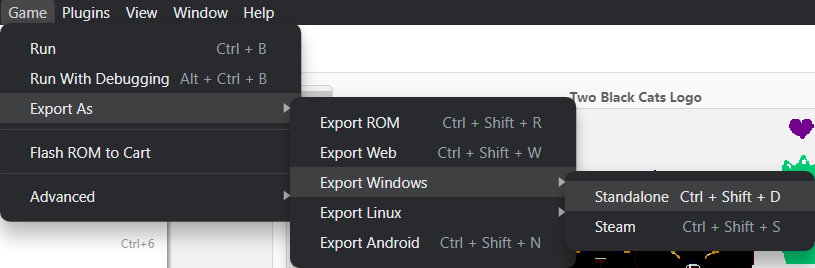
Go to Game > Export As and choose one of the available formats.
ROM Export
The ROM export allows you to burn your game on a flashcart and test it on the original compatible hardware. Once exported, you can flash the ROM to a cartridge using the built-in Flash ROM to Cart tool.
Custom ROM extension
You can change the generated ROM extension on the Preferences in the ROM Extensions section. The selected extension needs to start with a dot.
Web Export
The web export allows you to play the game from a website.
Custom Web Header
You can change the website Custom Header in the Settings > Export Settings > Web section.
Windows Export
Standalone
The standalone Windows export bundles your game with an embedded emulator into a single executable.
Steam
The Steam export adds Steam integration including achievements support. Configure the Steam App Id in Settings > Export Settings > Steam.
Custom Icon
You can change the icon used on the Windows version by placing a file called icon.ico inside your assets/ folder.
Linux Export
Standalone
A standalone Linux executable with an embedded emulator.
AppImage
The AppImage export option is only available when running MD Engine on Linux.
Packages the game as a portable AppImage that runs on most Linux distributions without installation.
DEB Package
Creates a Debian package (.deb) installable on Ubuntu, Debian, and derivatives via dpkg -i or your package manager.
- Installs desktop entry and icon (256x256)
- Dependencies: libc6, libsdl2-2.0-0
- Configure version and description in Settings > Export Settings > Linux
RPM Package
Creates an RPM package installable on Fedora, openSUSE, and Red Hat-based distributions via rpm -i or dnf.
- Same features as DEB (desktop entry, icon)
- Configure version and description in Settings > Export Settings > Linux
PortMaster Export
PortMaster support is experimental. Packaging format and launcher behavior may change in future versions.
PortMaster is an open-source game launcher for handheld Linux gaming devices such as Anbernic, Miyoo, and others.
The PortMaster export creates a .zip package containing:
- A launcher script with automatic input mapping and A/B button swap support
- The game binary and encoded ROM data
- SDL2 fallback for device compatibility
- A
screenshot.png(640×480) used by the PortMaster launcher - Package metadata (
port.json), game info (gameinfo.xml), and aREADME.md
Screenshot
The package includes a screenshot.png displayed in the PortMaster launcher. To provide a custom screenshot, place a portmaster_screenshot.png file in your project's assets/ folder. If no custom screenshot is found, the project icon (assets/icon.png) is resized to 640×480 instead.
Configuration
Configure the package description and README in Settings > Export Settings > PortMaster.
Limitations
- Always fullscreen — PortMaster games run in fullscreen mode at the device's native resolution. The aspect ratio is preserved with automatic letterboxing/pillarboxing.
- CRT shader disabled — The CRT shader effect is not available on PortMaster builds due to hardware constraints on handheld devices.
Installation
Copy the exported .zip file to the ports/ directory on your handheld device. The game will appear in the PortMaster launcher.
macOS Export
macOS exports have not yet gone through Apple certification (App Store review). Suitable for development and testing.
Creates a macOS application bundle (.app). Requires macOS 10.13 (High Sierra) or later. The exported app is a universal binary supporting both Intel and Apple Silicon Macs.
macOS 10.13 is the minimum because it is the oldest version that supports Metal graphics, C++17, and the libc++ standard library — all three are required by the engine.
- Bundle ID — Required for distribution (e.g.
dev.mdengine.mygame) - Version — Version string shown in the app info
- Code Signing — Optional signing identity for notarization (e.g.
Developer ID Application: Name (TEAMID))
Configure in Settings > Export Settings > Apple.
iOS Export
iOS exports have not yet gone through Apple certification (App Store review). Suitable for development and testing. Requires macOS with Xcode to build.
- Bundle ID — Required (e.g.
dev.mdengine.mygame) - Version — Version string
Configure in Settings > Export Settings > Apple.
Android Export
Android exports have not yet gone through Google Play certification. Suitable for development and sideloading.
- Package Name — Java-style identifier (e.g.
dev.mdengine.mygame) - Version Code — Integer that increases with each release
- Version Name — Display version string (e.g.
1.0.0) - Keystore — Path to a
.jkskeystore file for APK signing (optional for debug builds, required for release) - Key Alias — The alias of the signing key within the keystore
Configure in Settings > Export Settings > Android.
Touch Controls
For Web, Android, and iOS exports, you can configure on-screen touch controls for mobile/tablet play.
The Touch Layout Editor (in Settings > Export Settings > Touch Controls) provides:
- Layout presets: Standard, Compact, Left-Handed, Diagonal Up, Diagonal Down, Six-Button, Minimal, Custom
- Per-button configuration: Toggle visibility, adjust scale and position
- Live preview: A phone mockup showing the current button layout
- Enable/disable: Toggle touch controls on or off entirely
Exporter Features
There are several advanced features included in the MD Engine exporter that can be enabled with some events, you can check all on the Platform events section.
This includes the following:
- Achievements
- Platform Detection
- Input Inverted Mode
- Wide Screen Mode (16:9 aspect ratio)
- Toggle Fullscreen Mode
- Toggle 4:3 Window
- Toggle CRT Effect
- Close Game Request
Achievements
This is supported on the Desktop Export only when enabling Steam.
You can check the Unlock Achievement event information to know more.
Platform Detection
This is supported on the debugger, Web Export, and Desktop Export, it helps check the platform the game is running on.
You can check the If Running on Platform event information to know more.
Input Inverted Mode
This should be ON only on Japanese PS4 consoles to invert the UI button displays of Cross and Circle.
You can check the If Input Inverted Mode is Enabled event information to know more.
Toggle Wide Screen Mode
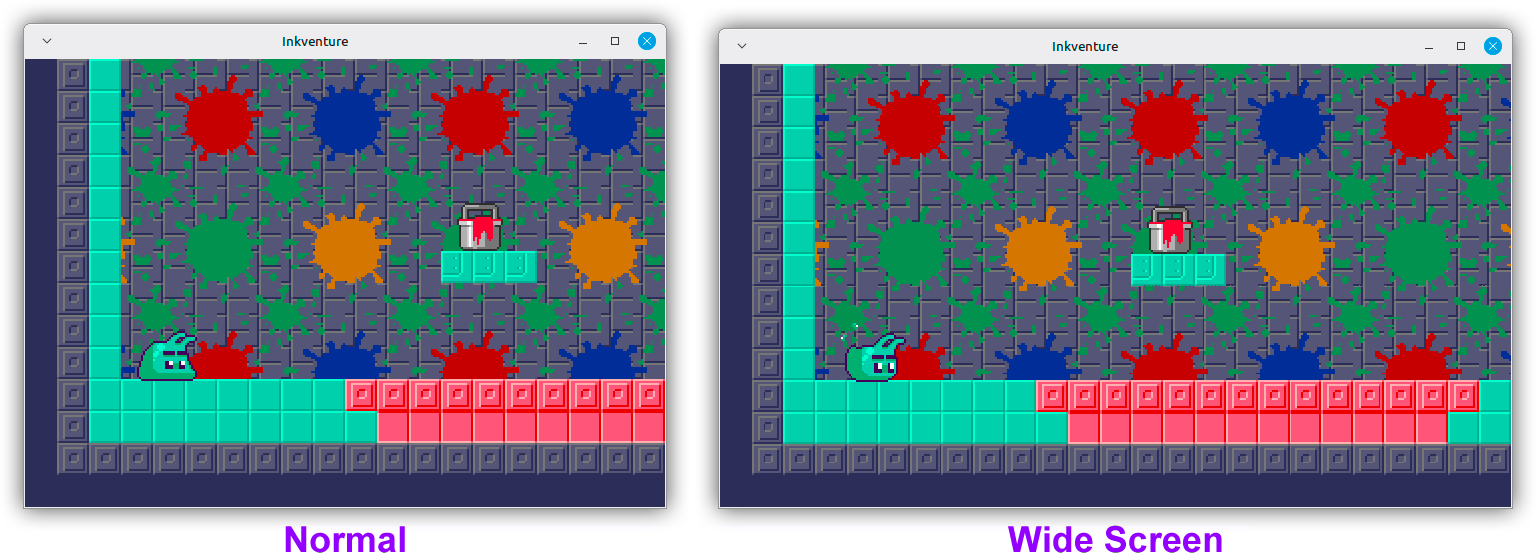
This is supported on the debugger, Web Export, and Desktop Export, it makes the game render in 16:9 aspect ratio.
If you are using the H40 mode, instead of having a 320px x 224px screen area you will have a 400px x 224px screen area.
This works by rendering more content on the right side of the screen.
Here you can see an example:
You can check the Toggle Wide Screen Mode event information to know more.
Toggle Fullscreen Mode
This is supported on the Desktop Export only, it toggles the window fullscreen mode.
You can check the Toggle FullScreen Mode event information to know more.
Toggle 4:3 Window
This is supported on the Desktop Export only, it makes the window occupy a 4:3 area instead of a usual 16:9 area with black borders.
You can check the Toggle 4:3 Window event information to know more.
Toggle CRT Effect
This is supported on the Desktop Export only, it toggles a CRT shader effect.
You can check the Toggle CRT Shader event information to know more.
Close Game Request
This is supported on the Desktop Export only, it notifies the game close has been requested.
You can check the Close Game event information to know more.
Enhanced Mode
This is supported on the Desktop Export only, it toggles the enhanced mode. This mode disables the sprite limit and allows you to render the Plane A (Foreground) under the Window Plane so dialogue windows look better.
You can check the Toggle Enhanced Mode event information to know more.
Toggle Rewind
This is supported on the debugger, Web Export, and Desktop Export, it toggles the rewind support.
You can check the Toggle Rewind event information to know more.
Notify Game Completed
This is supported on Desktop Export only, it notifies the runtime the game has been completed. It allows for special achievement unlocks and such if desired, depending on the runtime implementation.
You can check the Notify Game Completed event information to know more.