
UI Overview
MD Engine UI is split into three different main areas:
- Navigator - Contains the list of elements on the current view.
- Central Area - Contains the element preview or main area of interaction.
- Editor Sidebar - Contains the list of all properties or settings we can change for the element selected on the Navigator.
All the MD Engine View areas share this UI layout.
Here you can see a summary of each button that you can see on all the areas.
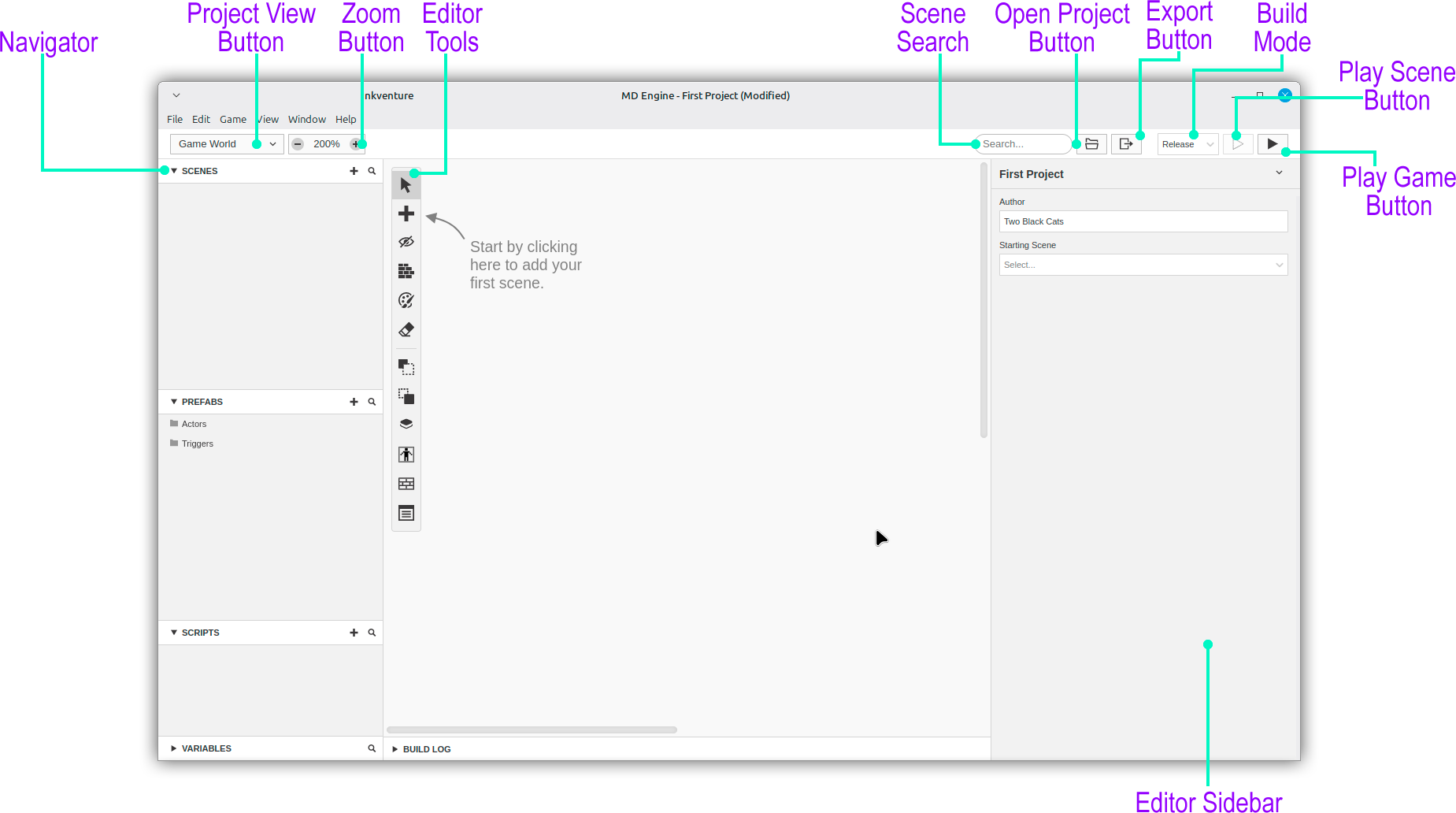
The Navigator area will show all the elements inside that specific View.
The Editor Sidebar will display the selected item.
When opening MD Engine, the first view for the Project Editor is the Game World.
Game World is where you can assemble your game with scenes, actors, and triggers.
Project Views
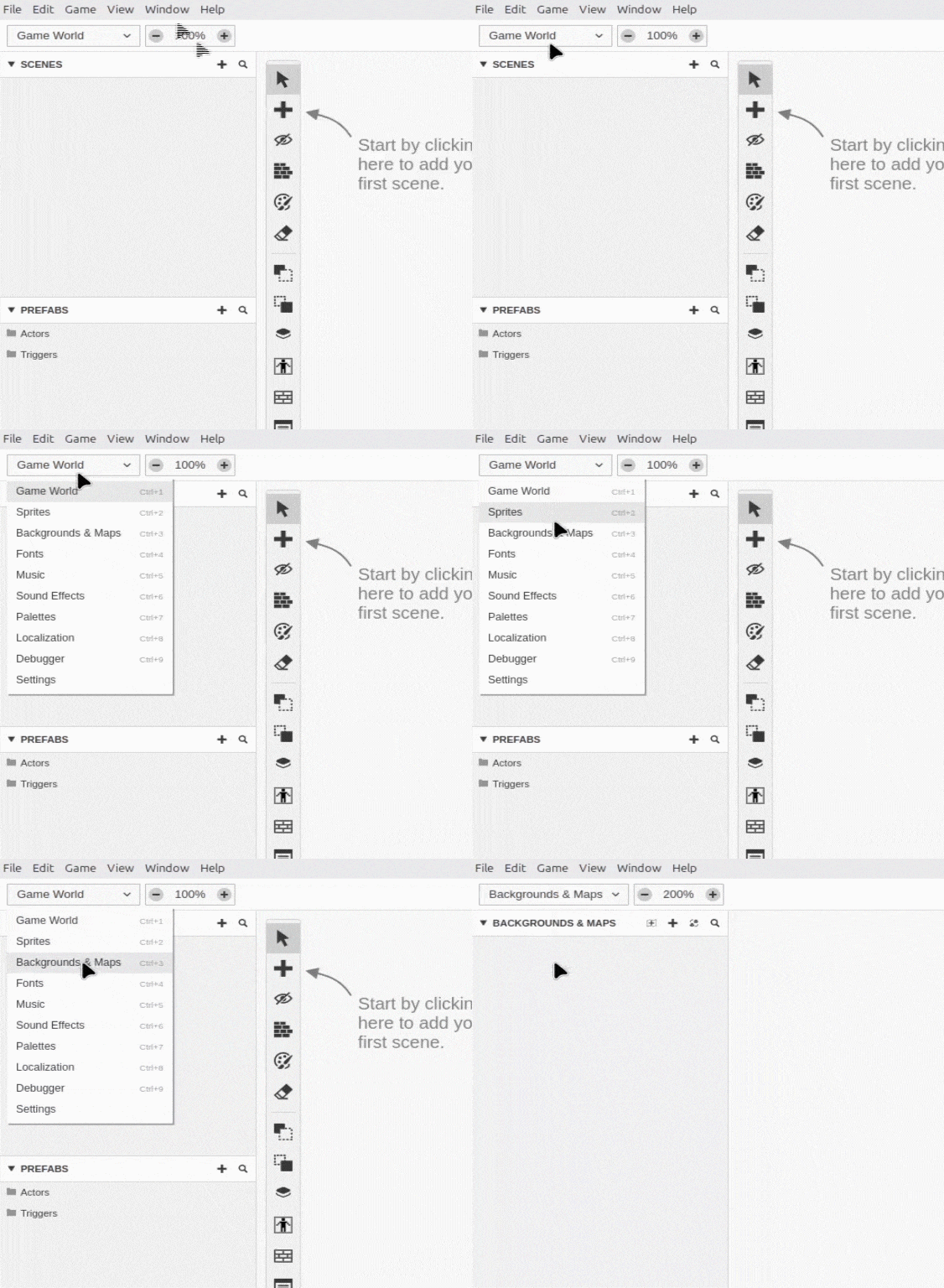
Using the Project View Button you can switch between different views of your project and its assets.
-
Game World: Create your game by combining scenes, actors and triggers.
-
Sprites: Edit your sprites and preview animations.
-
Backgrounds & Maps: Preview your background, maps and tileset assets.
-
Fonts: Create and preview a font.
-
Music: Preview your music files.
-
Sound Effects: Preview your sound effects files.
-
Palettes: Edit your palettes for games.
-
Localization: Preview and edit all the text in your game, localizations, and all the used characters.
-
Debugger: The game debugger, it will open when running a game.
-
Settings: Change your project's settings such as maximum elements, VDP, collision settings, etc.
See the documentation on Assets Types for more information on how to add new assets.
Detached Script Editor
You can detach the script editor into a separate window for more screen space when working with complex scripts. This is especially helpful on single-monitor setups where the sidebar can feel cramped.
To detach the script editor, select a scene, actor, or trigger and look for the Detach Script Editor button in the script editor header (it shows a detach/undock icon). Clicking it opens the script editor in its own floating window. Click the button again (now showing a dock icon) to re-attach it back into the main editor sidebar.