
Settings
The Settings view will allow you to change your main project's settings.
Cartridge
This section allows you to change some of the basic information placed into the ROM metadata.
- Name - The game name.
- Author - The developer's name.
- Size - The target ROM size, you can check the Saving section to know more.
- Save - The preferred save mode, you can check the Saving section to know more.

ROM Size Limits
The Mega Drive supports ROM sizes up to 4MB (32Mbit) by default. With the Two Black Cats custom PCB sizes up to 8MB are supported. Larger ROMs consume more space for assets (sprites, backgrounds, music, sound effects). You can monitor your ROM usage in the Build Log after building your project.
VDP
This section allows you to change the default VDP memory arrangement, you can also use the VDP Tiles Setup event on the scene OnStart, or OnEnd to change this during runtime.
- Background & Foreground Tiles - The number of tiles reserved for Backgrounds & Maps.
- Sprite Tiles - The number of tiles reserved for Sprites.
- Font Tiles - The number of tiles reserved for Fonts.
- Draw Background & Foreground Automatically - This allows you to disable the automatic rendering of Background & Foreground when a scene loads.
- Plane Size - This changes the default plane size.

Maximum Elements
This section allows you to change the maximum amount of different module elements, some of these consume RAM if you have too many, so it is best to increase only if needed.

There is more information regarding what each of these are in the Modules section.
Dialogue & Text
This section allows you to change the text mode, the default font as well as the default Dialogue Cursor tileset and Dialogue Frame tileset.

A detailed explanation of each Text Mode can be found below.
Simple Mode (English)
This mode is enabled by default due to it being the one that uses the least VDP space as well as allows for fast rendering. It only supports a small sub-set of the ASCII character set, you can check the entire list on the section regarding font asset. It will need 96 VDP tiles.
Simple Mode (EFIGSP)
This mode can be enabled if you want to include extra language support without much VDP compromise, it supports the lower case special letters of French, Italian, German, Spanish, and Portuguese. You can check the entire list on the section regarding font asset. It will need 118 VDP tiles.
Advanced Mode
This mode allows support for Asian languages as well as the full ASCII character set, it also allows for higher quality fonts since it supports 16px x 16px characters. As a trade-off, it's slower on rendering as they render the text to the VDP instead of loading the entire font into it like on the simple modes. You can check some extra information on the section regarding font asset. The total amount of needed tiles can be set on the VDP section outlined before.
Collisions
This section allows you to change settings related to the Collisions module.
- Collision System - The game collision system.
- Collision Mode - The game collision mode.
- Collision Storage - How the scene collision information is stored.
- Actor Overlap Behaviour - The overlap behaviour between actors.
- Collision Bias - The collision simulation bias value.

There is more information regarding what each of these are in the Collisions module docs.
Collision Group Names
This section allows you to change the collision group names, so they are easier to recognize while working on your game.

Collision Mask
This section allows you to change how the collision groups collide with each other.
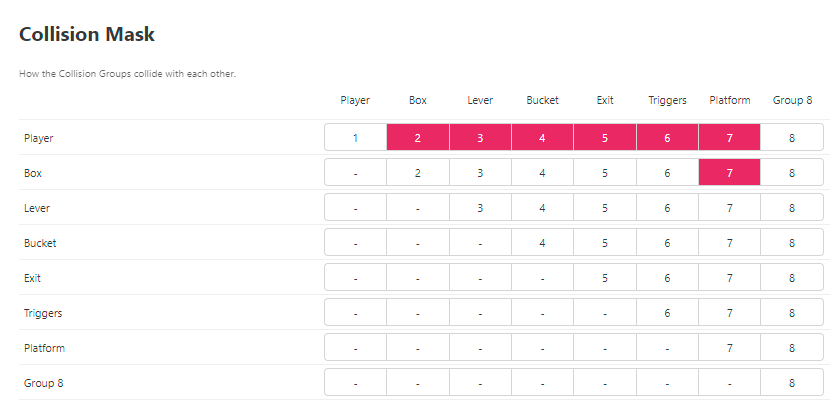
There is more information regarding what each of these are in the Collision Masking section.
Collision Check Frequency
This section allows you to change how frequently the collisions for each group are checked.
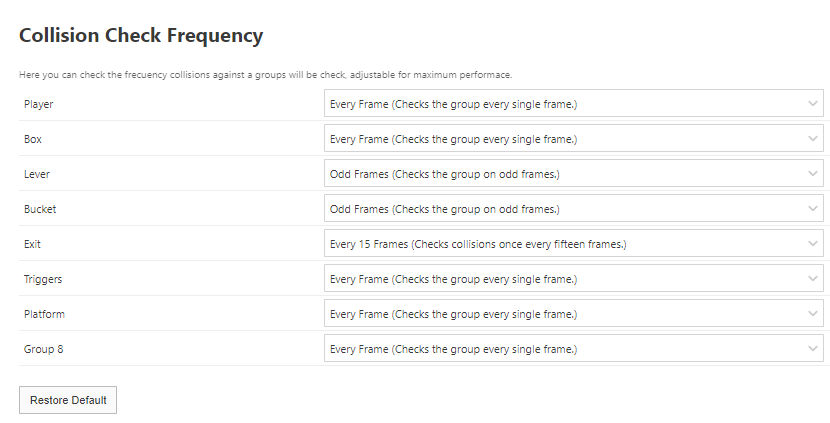
There is more information regarding what each of these are in the Collision Frequency section.
Pathfinding
These settings control the Pathfinding module:
- Max. Path Slots — The maximum number of paths available at once. The default is 4; the setting ranges from 2 to 8 in steps of 2.
- Pathfinding Nodes/Frame — The number of search nodes processed each frame. The default is 64; the setting ranges from 0 to 512 in steps of 16.
- Pathfinding Algorithm — Best-First Search is the default and searches quickly, but may produce a longer path. A* uses weighted distances to find an optimal path.
- Pathfinding Queue — The search queue size. Small (256) is the default; Medium (512), Large (1024), and Huge (2048) are available for maps that need a larger search area.
Engine Fields
This section allows you to change the engine fields, right now this only covers physics-related values.

There is more information regarding what each of these are in the Engine Fields docs.
Audio
This section allows you to change the export Audio settings.
- Sound Driver — Select the music driver: XGM2 (VGM files, 3 PCM channels with volume control), XGM (VGM/XGM files, no fade or volume control), or MDSDRV (MML files via mdslink).
- Sound Format — Export sound quality for WAV files: Normal (13.3 kHz) or Half Rate (6.65 kHz). Only available with the XGM2 driver.

There is more information regarding what each of these are in the Sound Driver section.
Build Options
This section allows you to change the settings relating to building your project.
- Open Build Log On Warnings
Choose if the
Build Logshould be displayed automatically when warnings are displayed such as "too many unique tiles or palettes used in a scene". If you're choosing to ignore these warnings it can be helpful to disable them, otherwise you'll be taken to theBuild Logevery time your game runs. Please note that errors building your project will always open theBuild Logregardless of this setting.
This section also includes four experimental compiler optimization settings — Script Inlining, Advanced Script Inlining, CSE & LICM, and Parameterized Script Dedup. Advanced Script Inlining requires Script Inlining. For details on what each pass does and when to use them, see Compiler Optimizations.
Controls
This section allows you to change the default keyboard and gamepad controls used when playing your game from a web build, desktop build, and the Play Window.

To edit the keyboard controls for a button click on the input box and while the input is highlighted type the key you wish to assign. To remove all the assigned keys click the input and then press the Backspace key on your keyboard.

To edit the gamepad controls for a button select the modern gamepad button that will be mapped to the MD button, several modern buttons can map to the same MD button.
To reset to the original controls you can use the Restore Default button.
Export Settings
The Export Settings section allows you to configure platform-specific metadata for each export target. The settings are organized by platform tabs.
Steam
- Steam App Id — Your game's Steam application identifier. Required for the Windows/Linux Steam export to enable achievements and other Steam features.

Apple
macOS
- Bundle ID — The macOS application bundle identifier (e.g.
dev.mdengine.mygame). Required for distribution. - Version — The version string displayed in the app's info panel.
- Signing Identity — Your Apple Developer signing identity for code signing and notarization (e.g.
Developer ID Application: Your Name (TEAMID)). Optional but recommended for distribution.
macOS exports have not yet gone through Apple certification (App Store review).
iOS
- Bundle ID — The iOS application bundle identifier.
- Version — The version string.
iOS exports have not yet gone through Apple certification. Building requires macOS with Xcode.

Android
- Package Name — Java-style package identifier (e.g.
dev.mdengine.mygame). - Version Code — An integer that must increase with each release.
- Version Name — A display version string (e.g.
1.0.0). - Keystore Path — Path to your
.jkskeystore file for APK signing. - Key Alias — The alias of the signing key within the keystore.
Android exports have not yet gone through Google Play certification.

Linux
- Version — The package version string (e.g.
1.0.0). Used by DEB and RPM exports. - Description — A short description of the game. Used in DEB/RPM package metadata and desktop entries.

PortMaster
PortMaster support is experimental. The packaging format may change.
- Description — A short description included in the PortMaster package metadata.
- Readme — The full README content bundled with the PortMaster package.

Web
- Custom HTML Header — Custom content added to the HTML
<head>section of the web build. You can use this to add CSS, JavaScript, or meta tags.

Touch Controls
Available for Web, Android, and iOS exports. Allows you to configure on-screen touch controls for mobile and tablet play.
- Layout Preset — Choose from Standard, Compact, Left-Handed, Diagonal Up, Diagonal Down, Six-Button, Minimal, or Custom.
- Per-button configuration — Toggle visibility, adjust scale and position for each button.
- Phone Preview — A live mockup showing the current button arrangement.
- Enable/Disable — Toggle touch controls entirely.
