
Your First Project
For our first project, we will start by selecting Empty Project as we do not want to edit any templates.
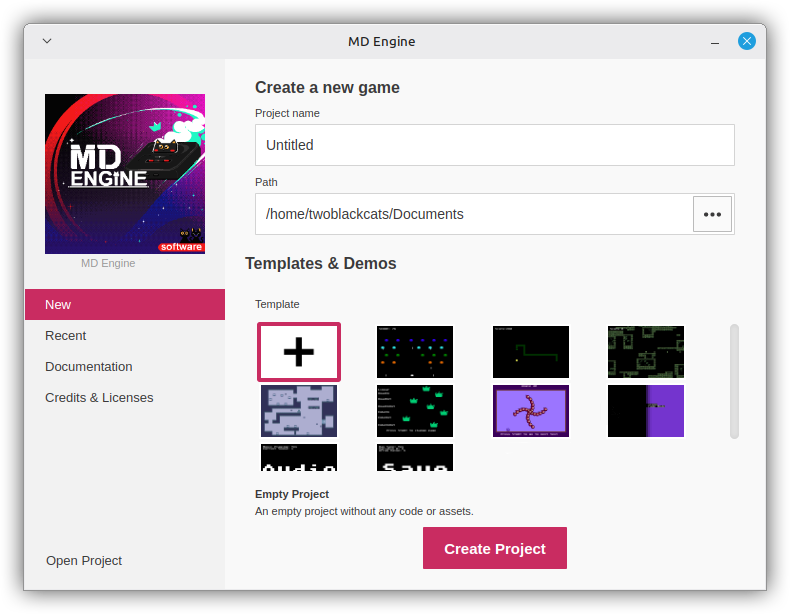
This will generate an empty project without any assets.
For the simplicity of this guide, you can find a background here and a sprite for our first project.
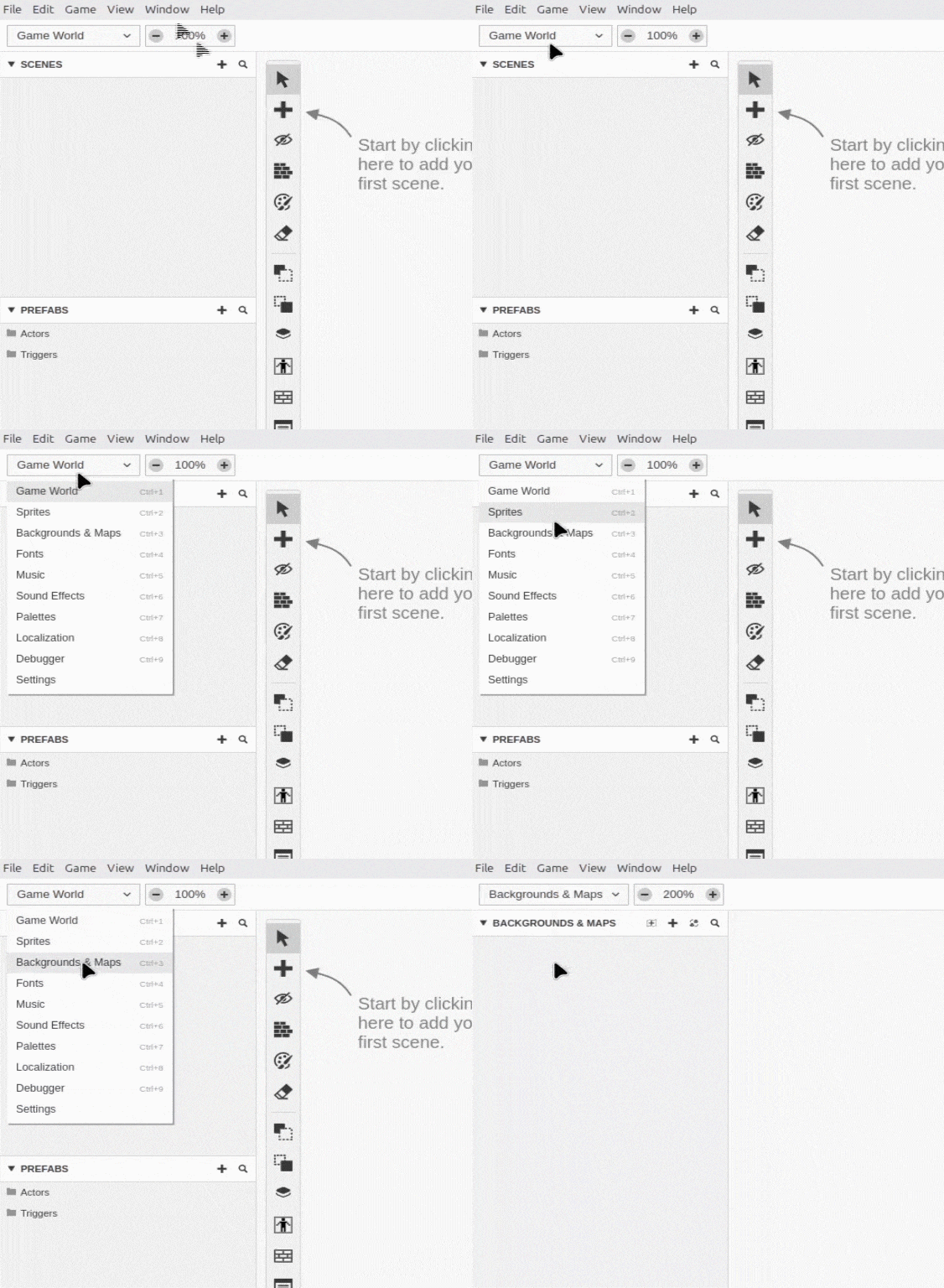
After downloading the zip, you can import the background by going to the Project View Button and selecting Background & Maps.
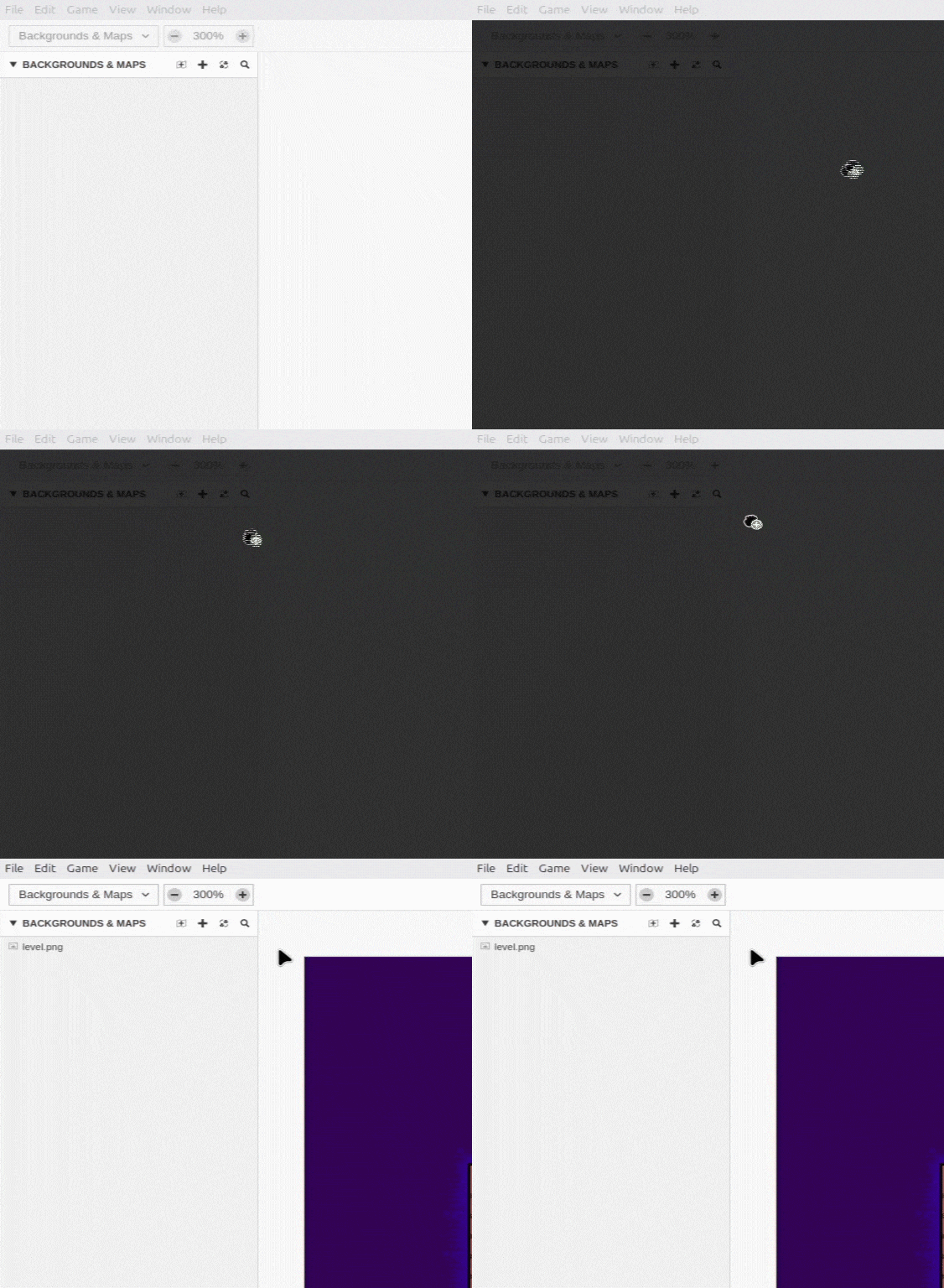
Once you are on the Background & Maps view, you can just drag the level.png file into the area to import it.
Now we can import our Sprite, so we go to Sprite view.

Once in Sprites view, you can just drag the character.png file into the area to import it.

Now that we have all assets imported we can continue with making our first scene. Next, let's create our first scene.