

Fonts
The font assets are used to store the letters needed for the dialogue system.
The amount of letters you can use depends on the text system you use.
Simple Mode (English)
This mode loads the entire font into VRAM so the amount of characters you can use is limited.
This system only supports letters with a size of 8px x 8px.
The font should have the following structure, you can follow the file below and adjust it.
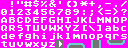
Be aware, there are 10 slots that get used for the dialogue box and arrow cursor.
They can be empty if you load them with their proper events or be directly included in the font.
The example displays transparent background for the letters.
If you want the text to be inside the dialogue box all the time, make sure to change the pink with the dialogue box color.
Simple Mode (EFIGSP)
This mode loads the entire font into VRAM so the amount of characters you can use is limited.
This system only supports letters with a size of 8px x 8px.
The font should have the following structure, you can follow the file below and adjust it.

Be aware, there are 10 slots that get used for the dialogue box and arrow cursor.
Be aware, the tiles after ¿¡ tiles won't be loaded into the VDP.
Advanced Mode
This system allows for any amount of letters you need as the font is not loaded into VRAM.
This is the best system for Asian languages due to the need for many characters and support for letter sizes over 8px x 8px.
For this system you need to convert TTF fonts with the Font Converter into PNG.
New Fonts
If you want to create new fonts, first you need to decide what text mode you are going to use as the process is slightly different depending on that.
Simple Modes
For the Simple Modes, you will need to create a single .png file if you want to create your own font, you just need to follow the previous samples.
The letter order is very important as the engine knows what letter to draw based on that pre-defined order.
Advanced Mode
For the Advanced Mode, you will need a .png file and a .json counterpart.
The fastest way will always be to use the Font Converter though.
Creating fonts manually is a complex procedure, using the Font Converter is recommended to create at least the file outline to then edit on top.
JSON File
The font .json file contains the font information as well as the codepoint order and size.
Here is a small example:
{
  "name": "<font name>",
  "size": "<number>",
  "gridWidth": <8 or 16>,
  "gridHeight": <8 or 16>,
  "codepoints": [
    {  "codepoint": <codepoint>, "width": <width in pixels>, "xadvance": <xadvance in pixels> },
    ...
  ]
}
PNG File
The font .png file should follow the order in which codepoints are noted in the JSON file.
Font Colors
The default font, as well as the fonts generated with the font converter for the Advanced Mode, use the last color (color 15) of the selected Text palette as the text color.
You can see an enlarged image with the respective palette on the Dialogue & Text section.