
Scene Notes
Notes are free-form text blocks that you can place anywhere on the world canvas. They are for your own reference and have no effect on gameplay.
Creating a Note
Right-click on empty space in the world view and select Add Note, or use the Add tool and choose Note.
Editing a Note
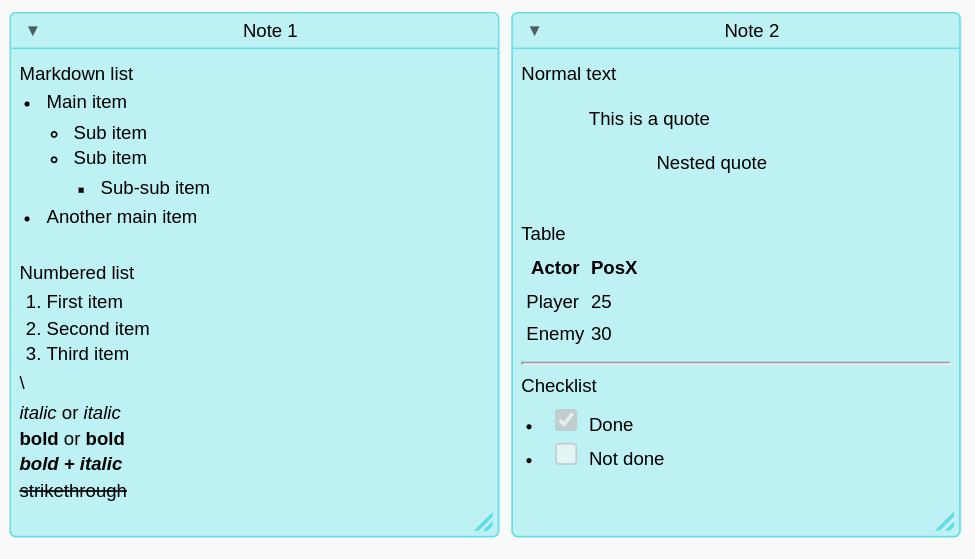
Double-click a note in the world view to enter edit mode. Type your content using Markdown syntax — headings, bold, italic, lists, and links are all supported. Press Escape or click outside to return to the rendered view.
Collapsing Notes
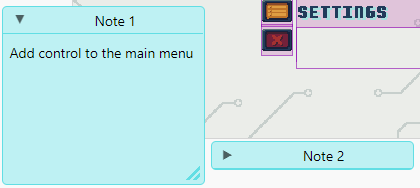
Click the chevron in the note header to collapse or expand the note body. This saves screen space when you have long notes. You can also right-click the note and choose Collapse or Expand.
Linking Entities
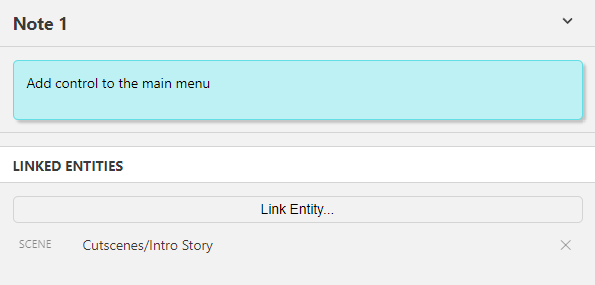
Notes can be linked to actors, triggers, and scenes in your project. Linked entities appear as clickable tags — clicking one navigates to that entity in the editor.
To link an entity:
- Select a note to open it in the Editor Sidebar.
- Click Add Link to open the entity picker.
- Browse the list (grouped by scene) and select the entity you want to link.
To remove a link, click the x next to the linked entity tag.
If a linked entity is deleted, its link is automatically removed from the note.