

The Engine
MD Engine uses a custom made compiler to generate code that can then be compiled with GCC info machine code.
The game then runs using TBCE (Two Black Cats Engine) which is built on top of SGDK library.
The compiler enables the needed modules on the fly depending on the used events and engine settings.
Events to C process
When building the game, MD engine will convert all the events into either C code or ASM code depending on the specific event.
Optimization process
When creating the final C functions from the scripts, the compiler will try optimize the output to produce the smallest amount of functions, so if you have several actors with identical events but different parameters for some of the values, the compiler will try to use a generic function with a params argument to match the needed arguments per actor.
This would generate a slower footprint of code paths, but a small overhead due to parameter passing, in the vast majority of cases this is preferred than having each actor on each scene has its own function footprint.
Async Scripts
MD engine has async events, these are events that start on one frame and finish some frames later.
You can check more about async scripts on the ASync Events section.
Scene Processes
MD Engine follows strict Scene processing steps. This ensures all functions are called at known times and in order to avoid confusions when doing the event code.
The Start Process
The On Start script is called before anything else, right before calling the script all the used modules get reset, except for the Global Arrays.
The scene start process is outlined in the following steps.
- Setup important data such as total actors and triggers, scene size and collision map
- Set scene mode, BG color index and reset camera module if present
- Load the palettes and create a backup
- Load background, then draw the background
- Wait 1 VSync
- Load the foreground, then and draw the foreground
- Wait 1 VSync
- Initiate the actors
- Scene On Start script
- Actors On Start script
- Preload sprites if needed
Be aware of the Scene On Start call position compared to the Actors On Start call position.
The start process is closely related to the exit process, as there is always a scene transition, even if you select no-splash build, there is a 2 frame black scene to set up the system. So it's recommended to review this closely with the Exit Process.
Setting Palettes inside On Start
Using the Load Palettes event can mess up fade-in effects. The best is to use Preload Palettes event instead.
The Update Process
The On Update script is called every frame, right before calling the function the engines runs the following tasks:
- Pre update all actors
- Sets the last X/Y position
- Reset the acceleration X for actors with platformer behaviour enabled
- Marks the hitbox as not updated
- Update timers module if active
- Update tweens module if active
- Call the scene update process
- Update camera module if active
- Update the scroll module if active
- Increase the game timer
- Check if a pause request has been issued
- Sync all actors positions
The scene update process is outlined in the following steps.
- Run the scene On Update script logic
- Run the actors On Update script logic
- Update behaviours
- Update actor position based on physics and update hitbox
- Clear actors touching values
- Check actor against groups overlaps
- Check group against same group overlaps
- Check actors against scene collisions
- Run the async On Collide script pending logics
- Check triggers overlaps
- Update projectiles module if active
- Update actor position based on physics and update hitbox
- Check overlap with actors
- Check projectile against scene collisions
- Check temporary triggers overlaps
- Update particle position based on physics
Be aware of the Scene On Update call position compared to the Actors On Update call position.
The Exit Process
The On Exit script is called when we change from one scene to another.
The scene exit process is outlined in the following steps.
- Run the actors On Exit logic
- Run the scene On Exit logic
- Free preloaded sprites if needed
- Release actors
- Clear maps
- Reset the scene
- Clear loaded images
- On Debug mode clear the VDP
- Free projectiles module if active
- Free all non-global arrays, if the module is active
- Free particles module if active
- Reset the image scrolling
- Reset scrolling to affect entire plane
- Free the thread module if active
- Free the timers module if active
- Free the tween module if active
- Reset the camera module if active
- Update VDP layout if requested during On Exit
- New scene start process
- Update camera after the start in case we moved the follow element on the start method
Be aware of the Scene On Exit call position compared to the Actors On Exit call position, as it's inverted from the other two scripts.
The Pause Process
The On Pause script is called every frame while the game is paused, right before calling the function the engines runs the following tasks:
- Pre update all actors
- Sets the last X/Y position
- Reset the acceleration X for actors with platformer behaviour enabled
- Marks the hitbox as not updated.
- Call the scene On Pause script
- Check if an un-pause request has been issued
- Sync all actors positions
The pause process is very simple due to all systems being paused and it's expected that there will be very little or no animations or movements altogether. Also, there is no async script processing.
Actors Depth on Scene
The order in which actors are added to a Scene reflects on their current depth, you can change the depth with left-click and select Dept, and the requested action.
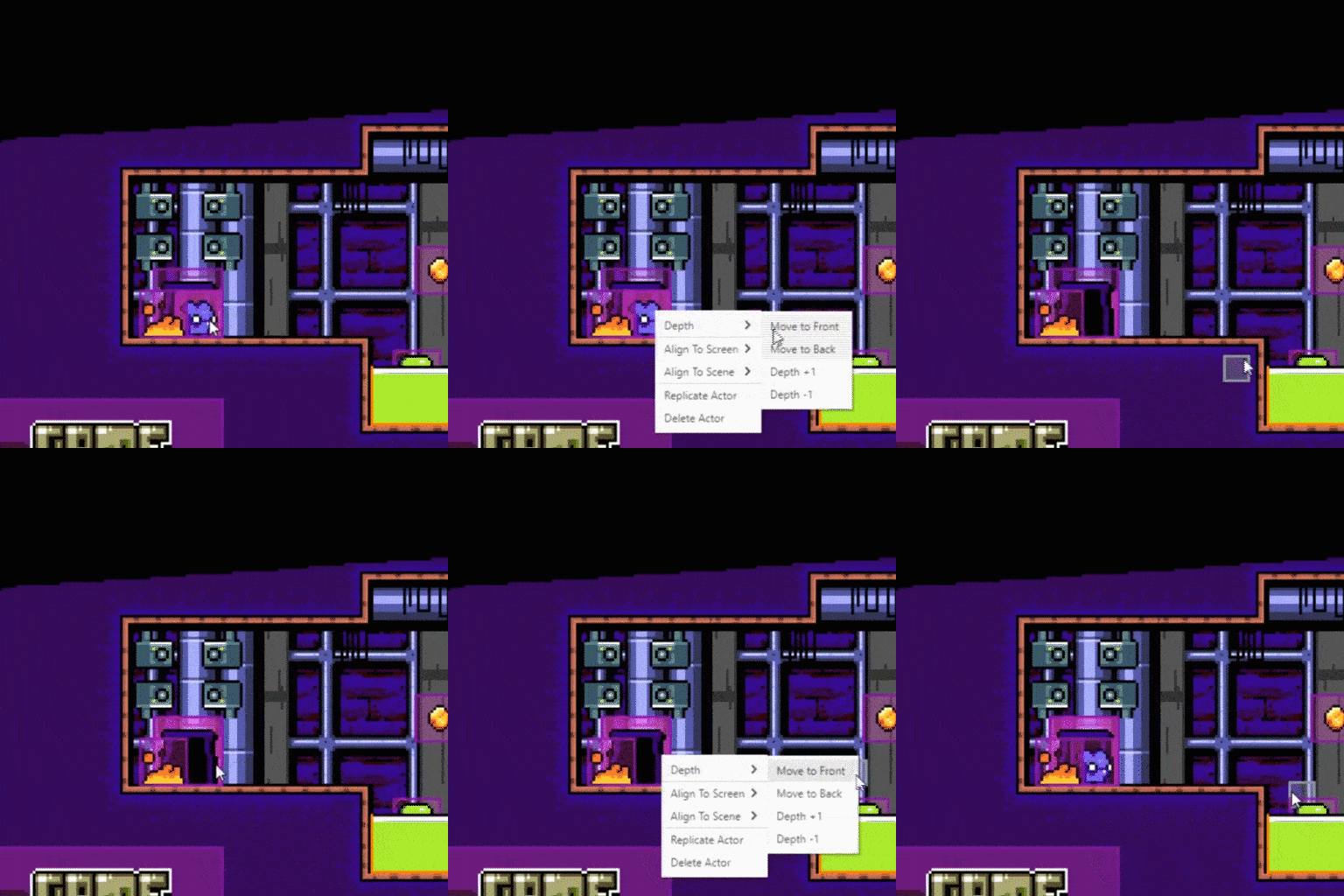
This will also change the order in which their script functions are run.
Changing the depth during playtime won't change the function execution order though.