

Scripting
Scripting events allow you to control parts of your game based on interactions from the player. They can be used to connect scenes together, change variables, give dialogue to characters, and more.
Scripts can be added to scenes, actors, or triggers. Selecting one of these objects will update the World Editor to show the script of the selected object in the Editor Sidebar.
To start building a script, select an object and click the Add Event button in the Editor Sidebar to open the event menu. Select an event to add it to the script. The topmost event is the first event to be run for that script.
Adding Events
After clicking the Add Event button, a menu will appear to choose the event to add. If you start typing you can filter this list or you can click through the menu to find what you're looking for. Click an event or press the Enter key to add the highlighted event to your script.
Favourite Events
You can choose a number of events to be favourites, causing them to appear at the top of the Add Event Menu. To favourite an event, hover over the menu item and click the Star button or press the Tab key.
Copy and Paste Events
To copy an event, click the down arrow next to an event. All scripts have this same down arrow for copying/pasting. Clicking the down arrow on another event allows you to paste the clipboard event either before or after the selected one. You also have the option to paste the values from the first event into the second.
As a shortcut for pasting, you can press the Alt key to turn all Add Event buttons into Paste Event buttons.
Types of Scripts
There are multiple script tabs to choose from the Editor Sidebar depending on which object you have currently selected.
Scene Scripts
These scripts can be accessed in the Editor Sidebar by selecting a scene in your project.
- On Start - This script will be called as soon as the scene is loaded in the game. You can use this to do things like playing music as the scene loads, configuring events to happen on button presses, initializing actors based on the values of variables, and much more.
- On Update - This script will be called every frame before the Actor and Trigger On Update scripts, this can control most of your scene logic, like when to pause the game, or background effects, and much more.
- On End - This script will be called as soon as the scene is unloaded in the game. You can use this to pause music, do a fade out, save score if needed, and much more.
- On Pause - This script will be called instead of the On Update when the game is paused, you can place your pause update logic here.
Actor Scripts
These scripts can be accessed in the Editor Sidebar by clicking on an Actor in your project.
- On Start: Called as soon as the scene is loaded in the game.
- On Update: (only if Update Mode is set to Parallel) Repeatedly called every frame, once the script finishes it will repeat. You can use this to create movement scripts.
- On Interact: (only if Update Mode is set to Interact) This is called if an actor stands in front of this actor and the Actor Interact event is called.
- On End: This script will be called as soon as the scene is unloaded in the game.
- On Collide: (only if collision group is set) This is called when this actor collides with either the player or a projectile with a specified collision group.
Trigger Scripts
These scripts can be accessed in the Editor Sidebar by clicking a Trigger in your project.
- On Enter: Called as soon as an actor enters into the trigger area.
- On Update: Repeatedly called every frame, while the overlap is still going on.
- On Exit: Called as soon as an actor exits the trigger area.
Control Flow
MD Engine has many events that allow to control the flow of the script, such as check If Actor Is Moving, or If Actor On Screen, etc.
Event inversion
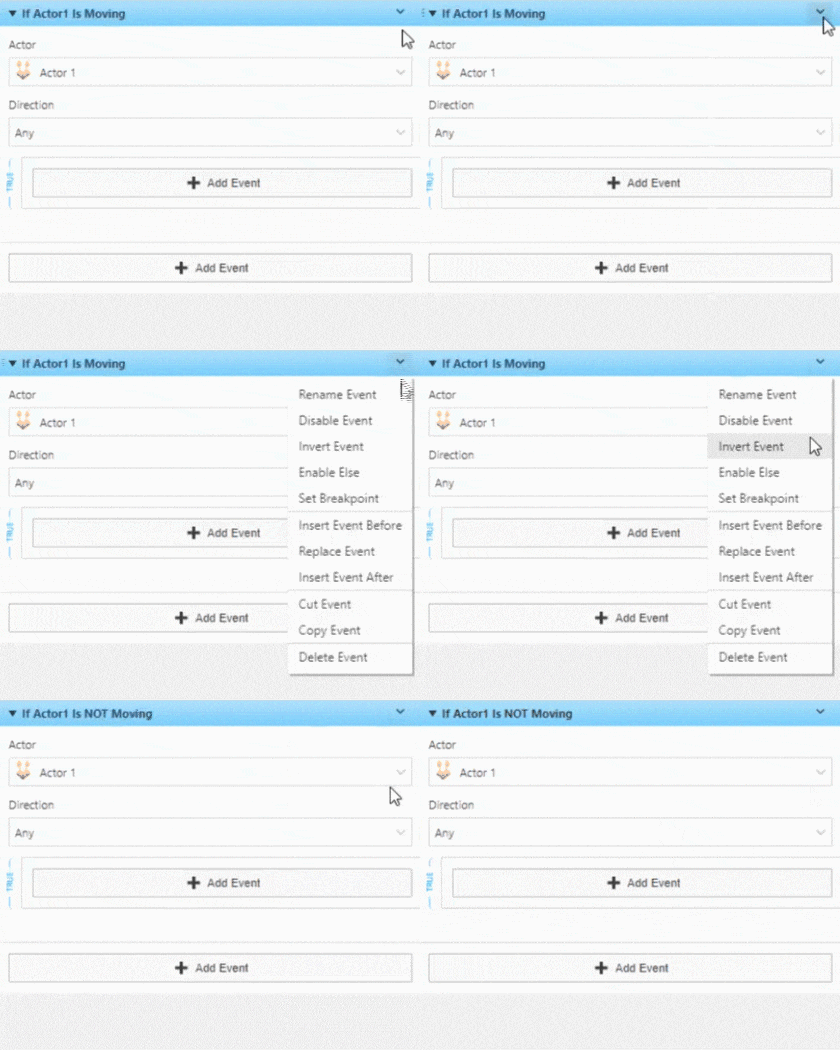
Most of the control flow events can be inverted to check for the oposite condition, such as If Actor Is NOT Moving or If Actor NOT On Screen.
To invert an event, check the down arrow and select Invert Event if pressent, that would invert the event and check for the opposite condition.
Else
If you want to have code for when an script condition is false, you can enable the Else part with Enable Else in the event drop down, which is right under Invert Event.